
1Before you start
Your website is www.ashmobile.biz. It runs on Wix. You read your enquiries and change your page text and photos from the Wix dashboard, the control panel behind your website. We look after the design.
You can do yourself
- Read and reply to website enquiries
- Change the text and photos on your pages
- Update your opening hours, address and phone number
- See how many people visit your website
- See how people find you on Google
We do for you
- Page design, layout and the phone version
- New pages, menus and buttons
- Google search settings
- Your domain and team access
The pictures in this guide come from your own Wix dashboard and Google. Red numbers point to the button each step talks about. Tap any picture to make it bigger.
2Log in to your dashboard
- Open the invitation email from Wix and click Accept. We sent it to the shop's Gmail address. Always log in with this same email address.
- Go to www.wix.com and click Log In.
- Open Ash Mobile. You are now on your dashboard.
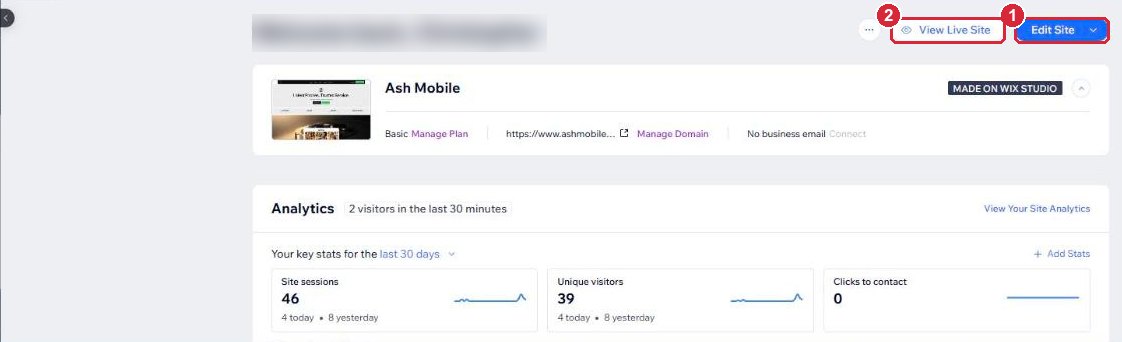
- 1Edit Site: the small arrow beside it opens Content Mode, where you change page text and photos (see section 7).
- 2View Live Site: see your website the way your customers see it.
3Read your website enquiries
When someone sends the form on your Contact Us page, Wix emails it to the shop's Gmail and keeps a copy in your dashboard. Most customers will still WhatsApp you on +65 9100 4919, because every WhatsApp button on your website opens a chat with that number.
- On the left, click Customers & Leads, then Forms & Submissions.
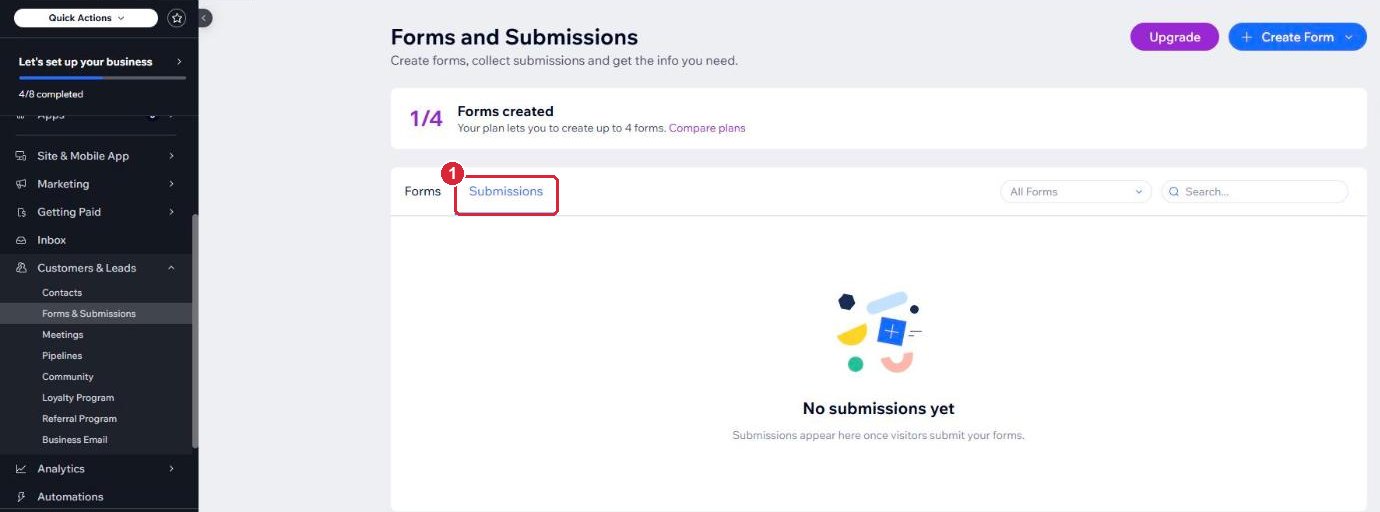
- Click the Submissions tab.
- Click an enquiry to read it. Reply to the customer by email or WhatsApp.
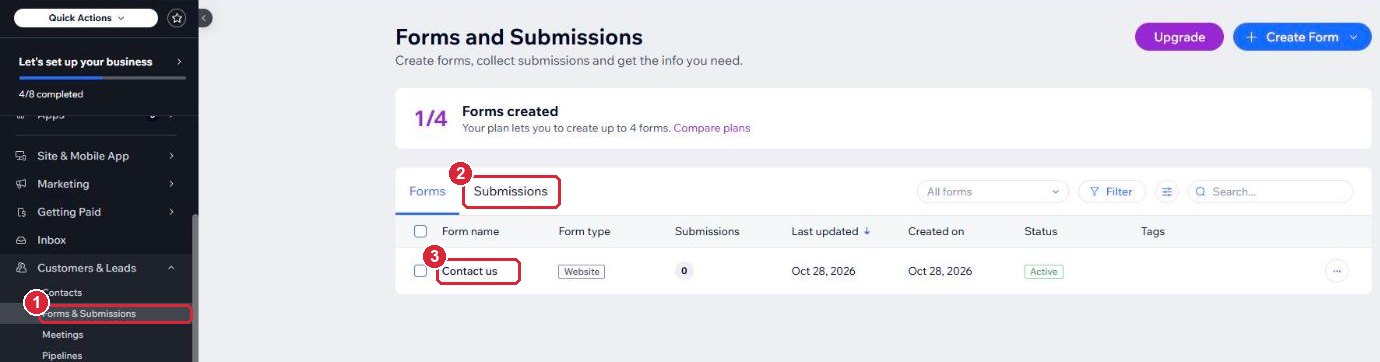
- 1Forms & Submissions on the left.
- 2Submissions: every enquiry received.
- 3Contact us: the form on your website. The number beside it is how many enquiries it has received.
4Your contacts
Everyone who sends the form is saved as a contact (a customer record with their name, email and phone).
- On the left, click Customers & Leads, then Contacts.
- Type a name, email or phone number in Search to find someone.
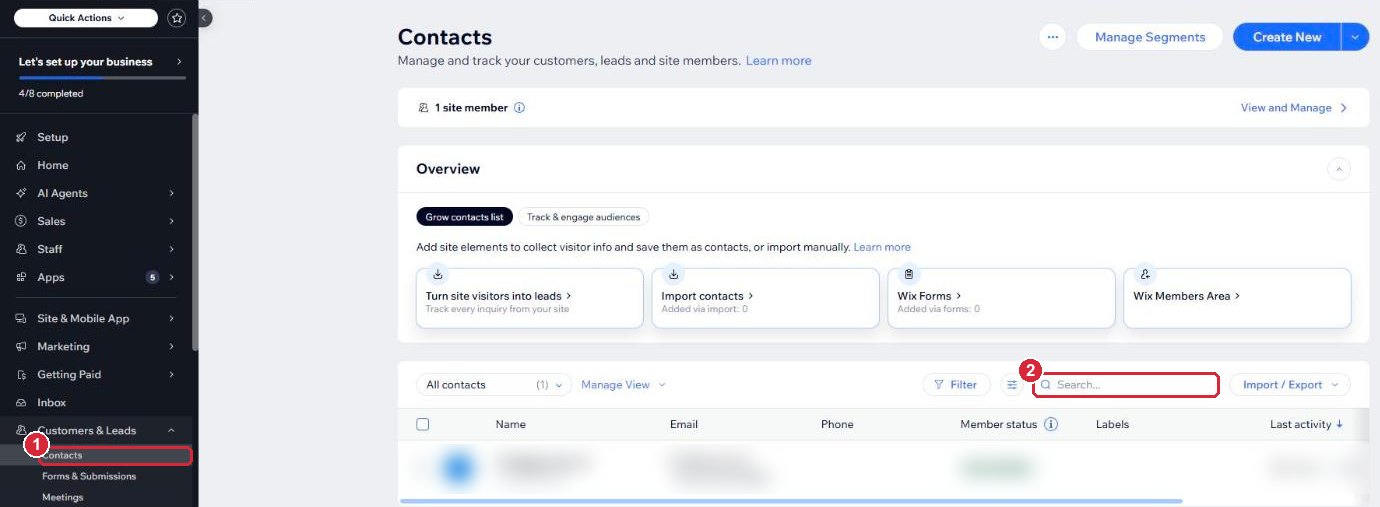
- 1Contacts on the left.
- 2Search: find a customer quickly.
5Your website visits (Google Analytics)
Google Analytics counts the people who visit your website. Look once a week or once a month. It started counting on 21 November 2026, so the numbers build up from then.
- Open the invitation email from Google Analytics and accept it.
- Go to analytics.google.com and log in with the shop's Gmail.
- Open Ash Mobile.
Is anyone on the site right now?
On the left, click Reports, then Realtime overview.
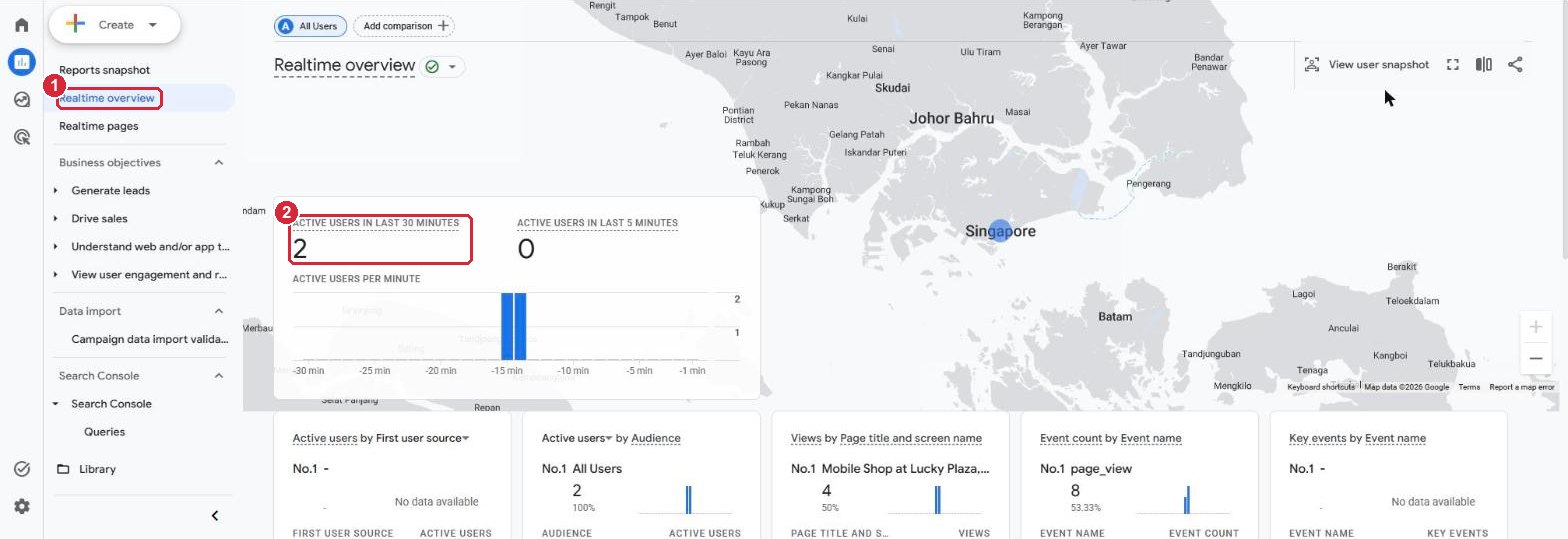
- 1Realtime overview on the left.
- 2Active users in last 30 minutes: people on your website right now.
Which pages do people read?
- On the left, click View user engagement and retention, then Pages and screens.
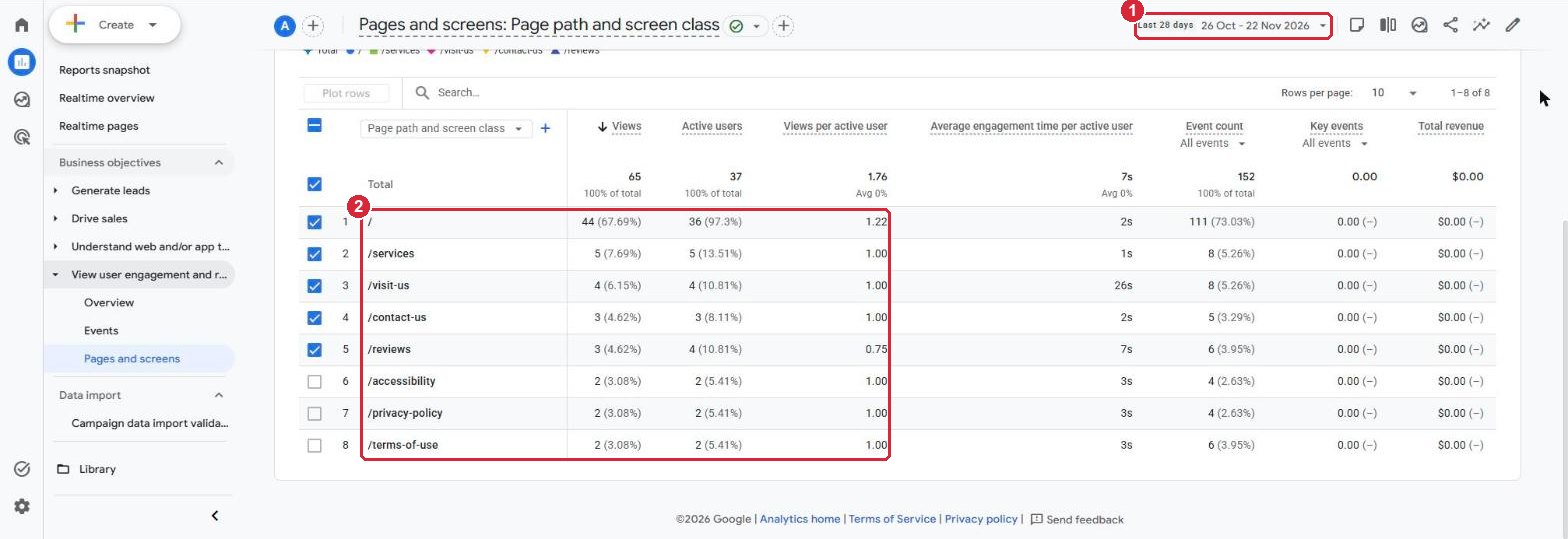
- 1Date range: click to look at a different period.
- 2Your pages: the most visited first. Views is how many times the page was opened.
Where do visitors come from?
- On the left, click Generate leads, then Traffic acquisition.
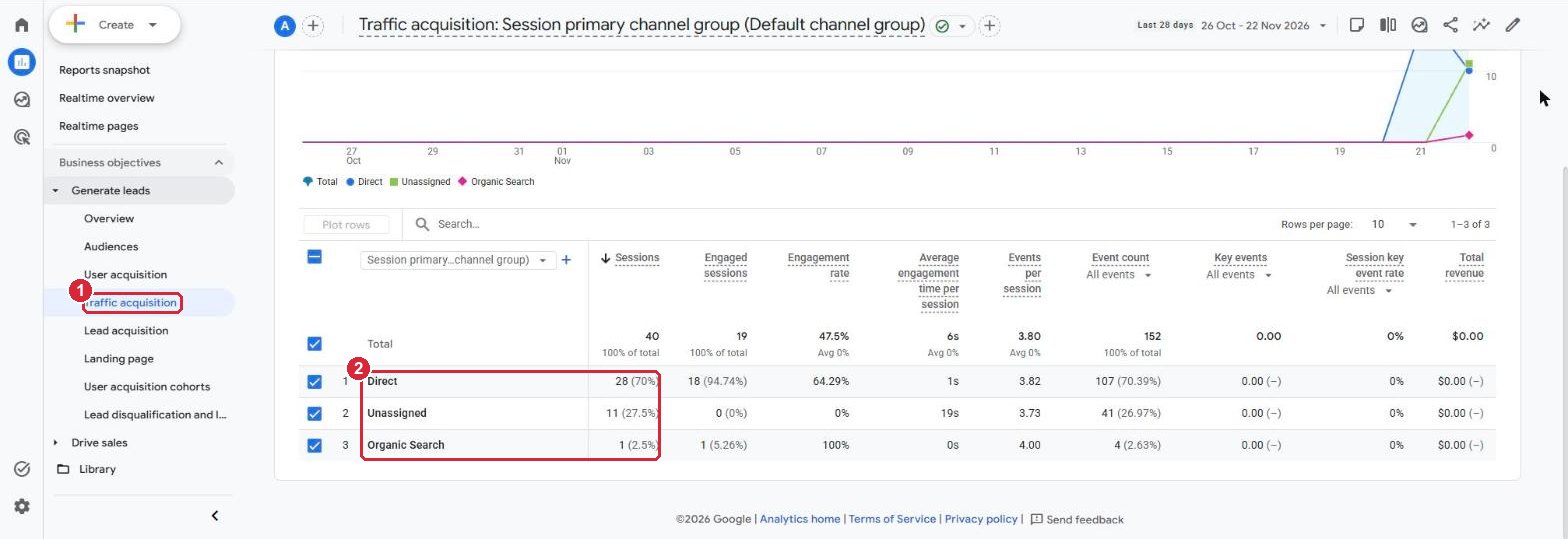
- 1Traffic acquisition on the left.
- 2Direct: people typed your address or opened a saved link. Organic Search: people found you on Google.
6Google search (Search Console)
Search Console shows how your website appears in Google search. Look once a month.
- Open the invitation email from Google Search Console and accept it.
- Go to search.google.com/search-console and log in with the same Gmail.
- Choose ashmobile.biz and click Performance on the left.
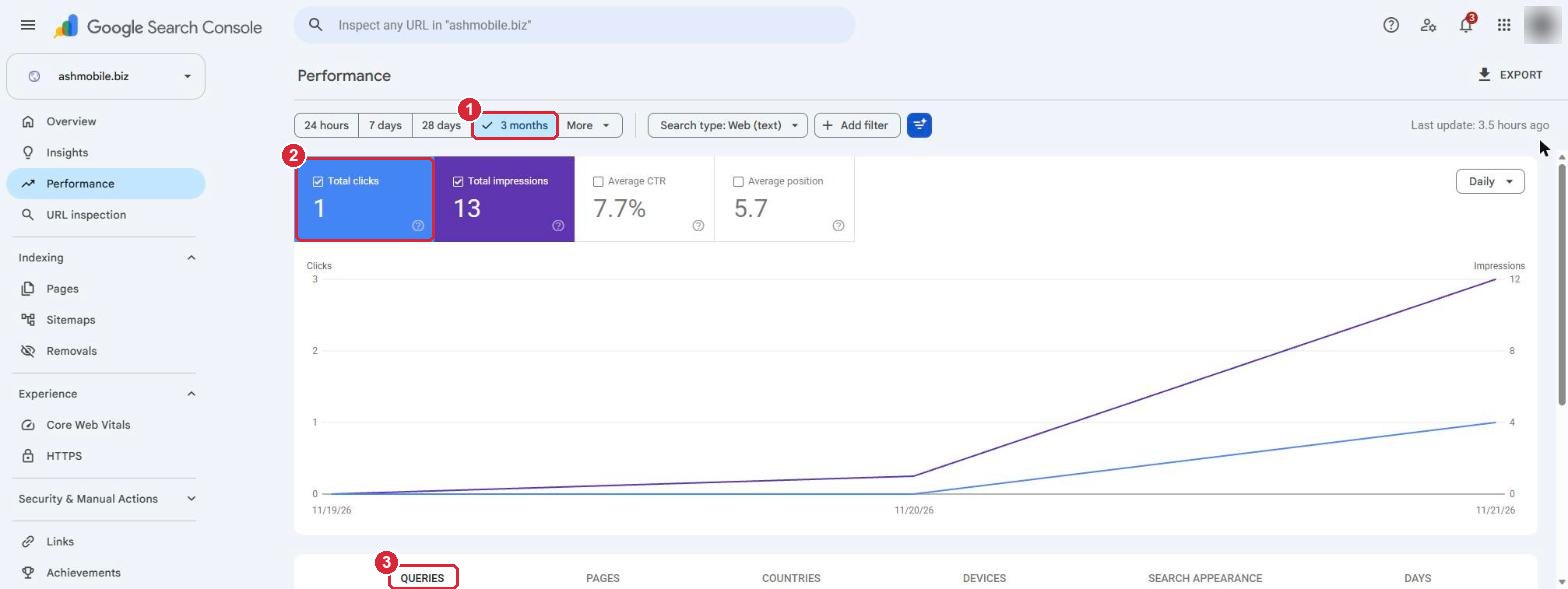
- 1Period: 24 hours, 7 days, 28 days or 3 months.
- 2Total clicks: people who came to your website from Google. Total impressions: how many times your website was shown in Google results.
- 3Queries: scroll down to see the words people searched.
Is my page on Google?
Type your page address in the search bar at the top and press Enter.
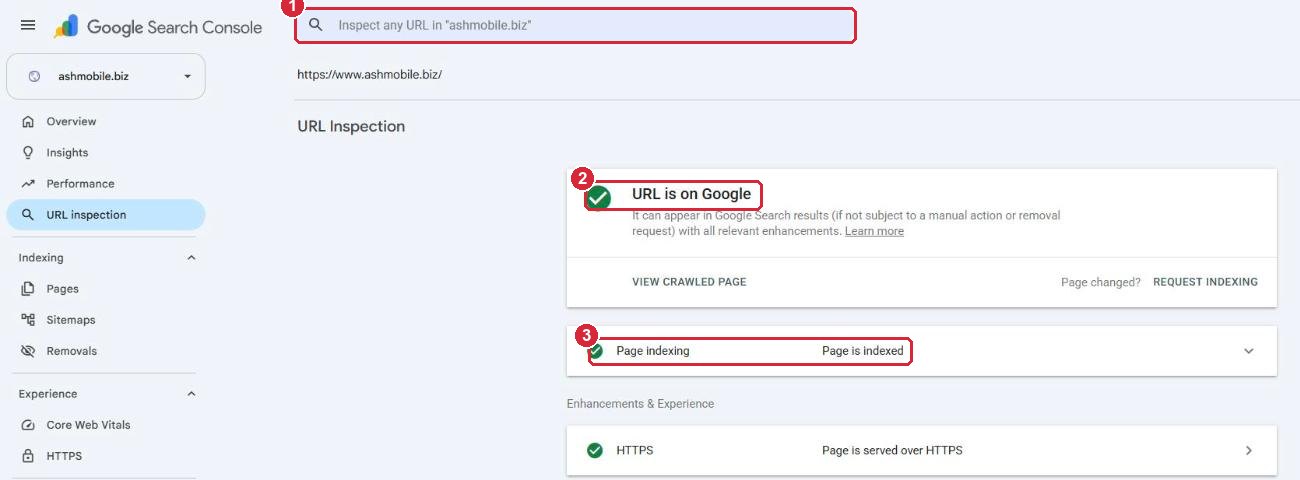
- 1Type the page address here.
- 2URL is on Google: people can find this page in Google.
- 3Page is indexed: Google has saved the page.
Does Google know all my pages?
Click Sitemaps on the left.
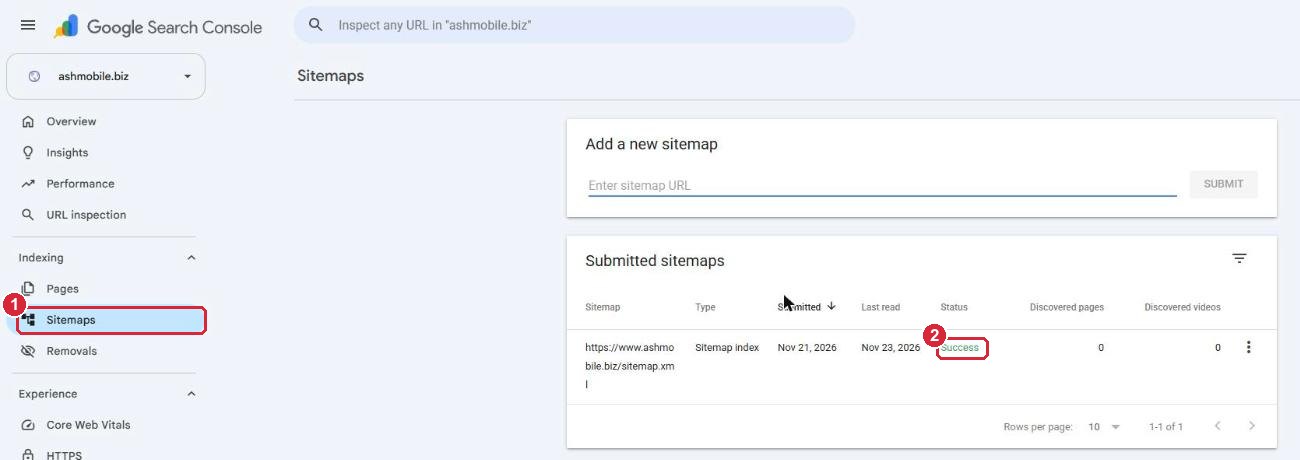
- 1Sitemaps on the left.
- 2Success: Google has read your list of pages.
7Change the text on a page
- On your dashboard home page, click the small arrow beside Edit Site.
- Click Content Mode. Your website opens with a simple Edit Content panel on the right.
- Click once on the section you want to change. Its text appears in the panel on the right.
- Click inside the box, for example Title or Paragraph, and type your new words.
- Click Publish at the top right. Nothing goes live until you publish.

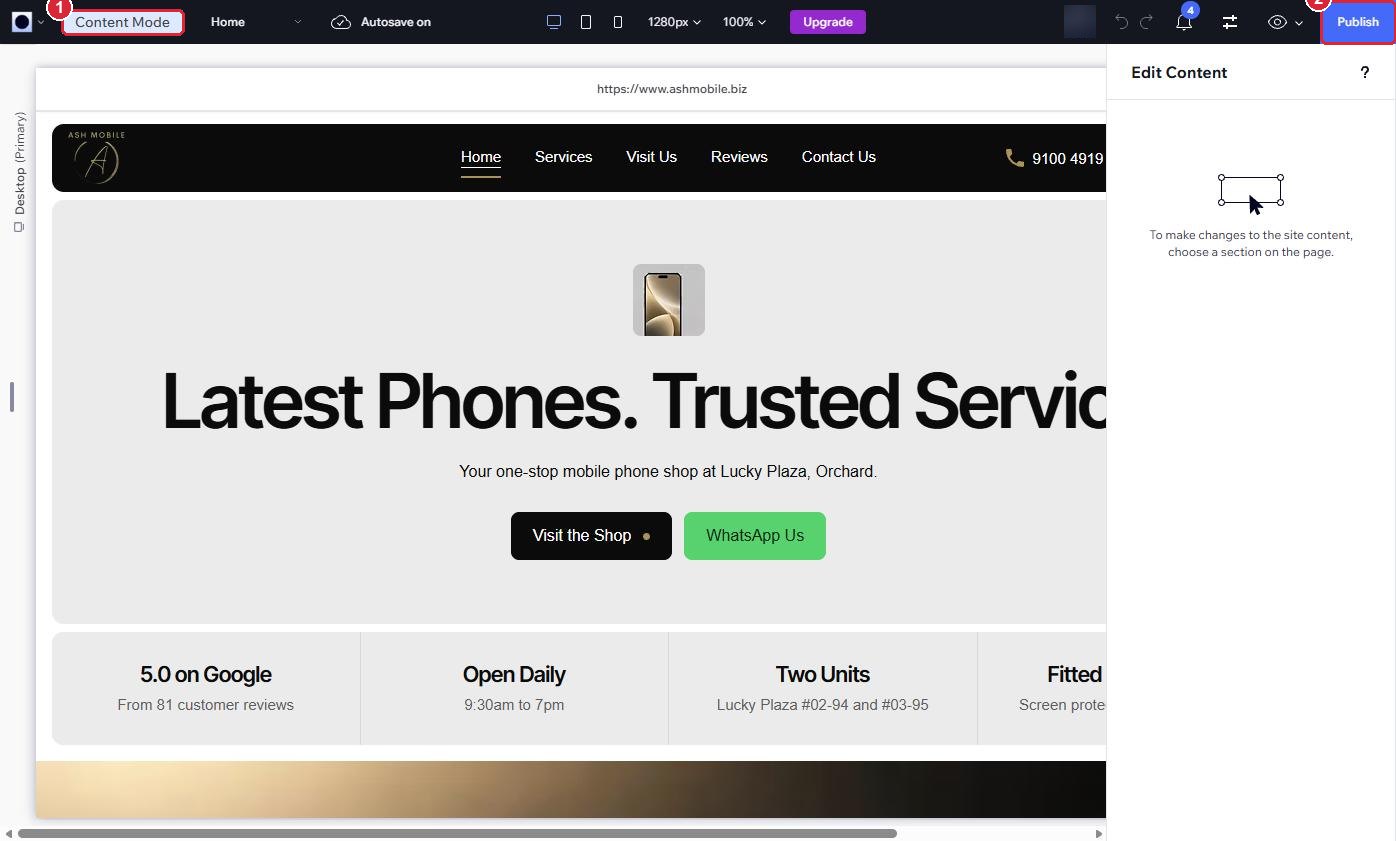
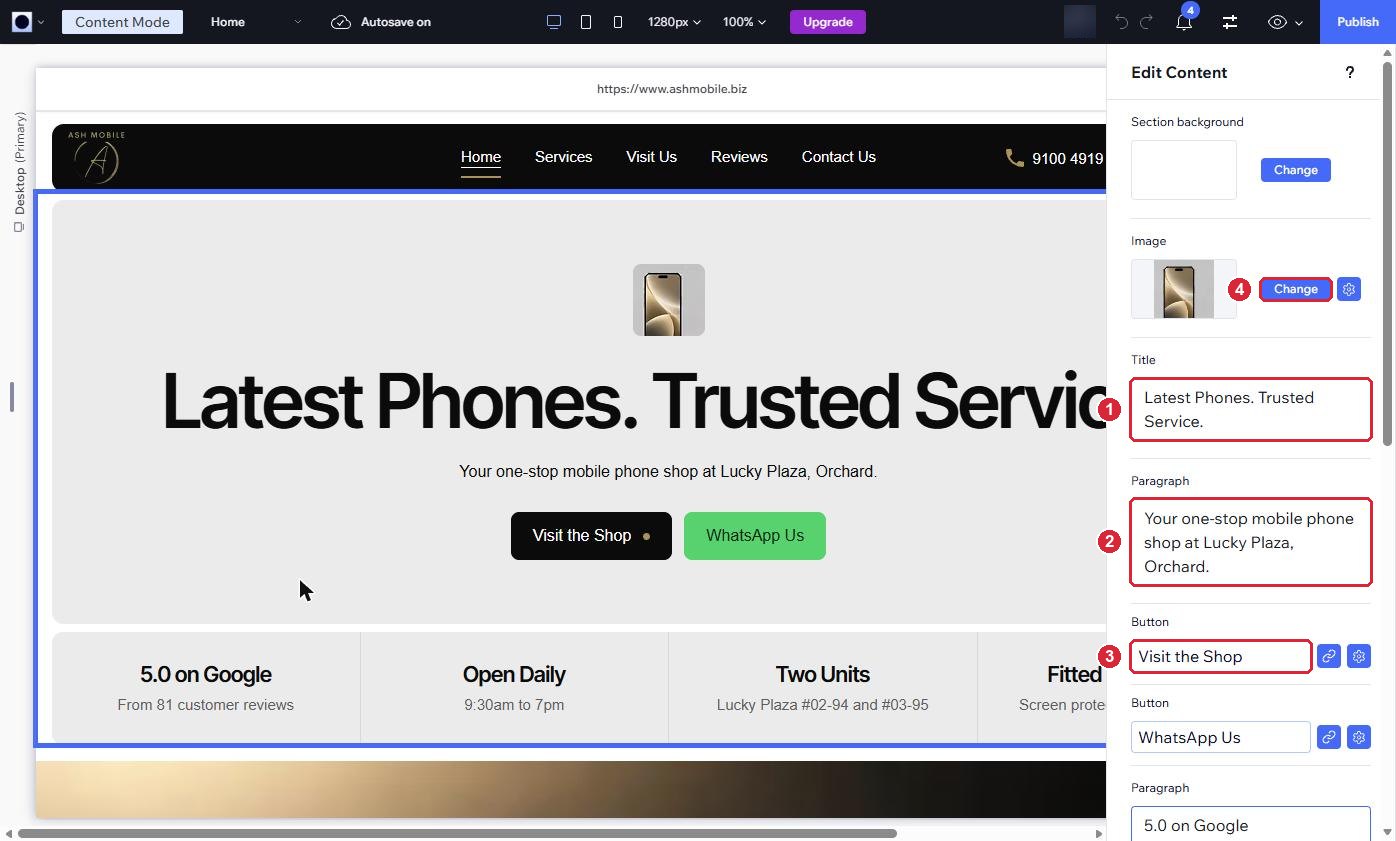
- 1Title: the big heading.
- 2Paragraph: the text below it.
- 3Button: the words on the button. The link icon beside it is where the button goes.
- 4Change: replace the picture (see section 8).
8Change a picture on a page
- Open Content Mode (steps in section 7) and click the section with the picture.
- In the panel on the right, find Image and click Change.
- Click Upload Media to add a photo from your computer or phone, or click a photo you uploaded before.
- Click Update, then Publish.
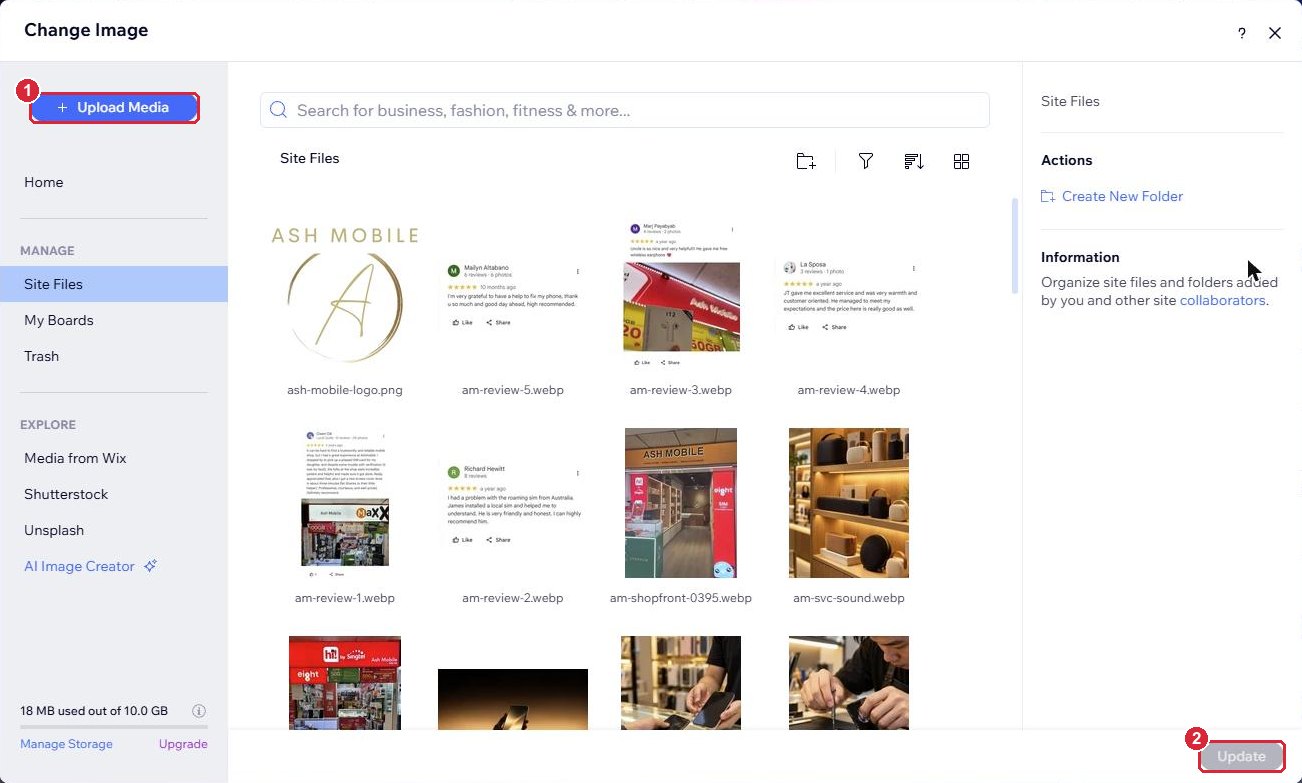
- 1Upload Media: add a new photo.
- 2Update: put the chosen photo on the page.
9Change opening hours, address or phone number
These appear in the footer, at the bottom of every page.
- Open Content Mode (steps in section 7).
- Scroll to the very bottom of the page and click the white box with your address.
- Change the words in the box you need.
- Click Publish.
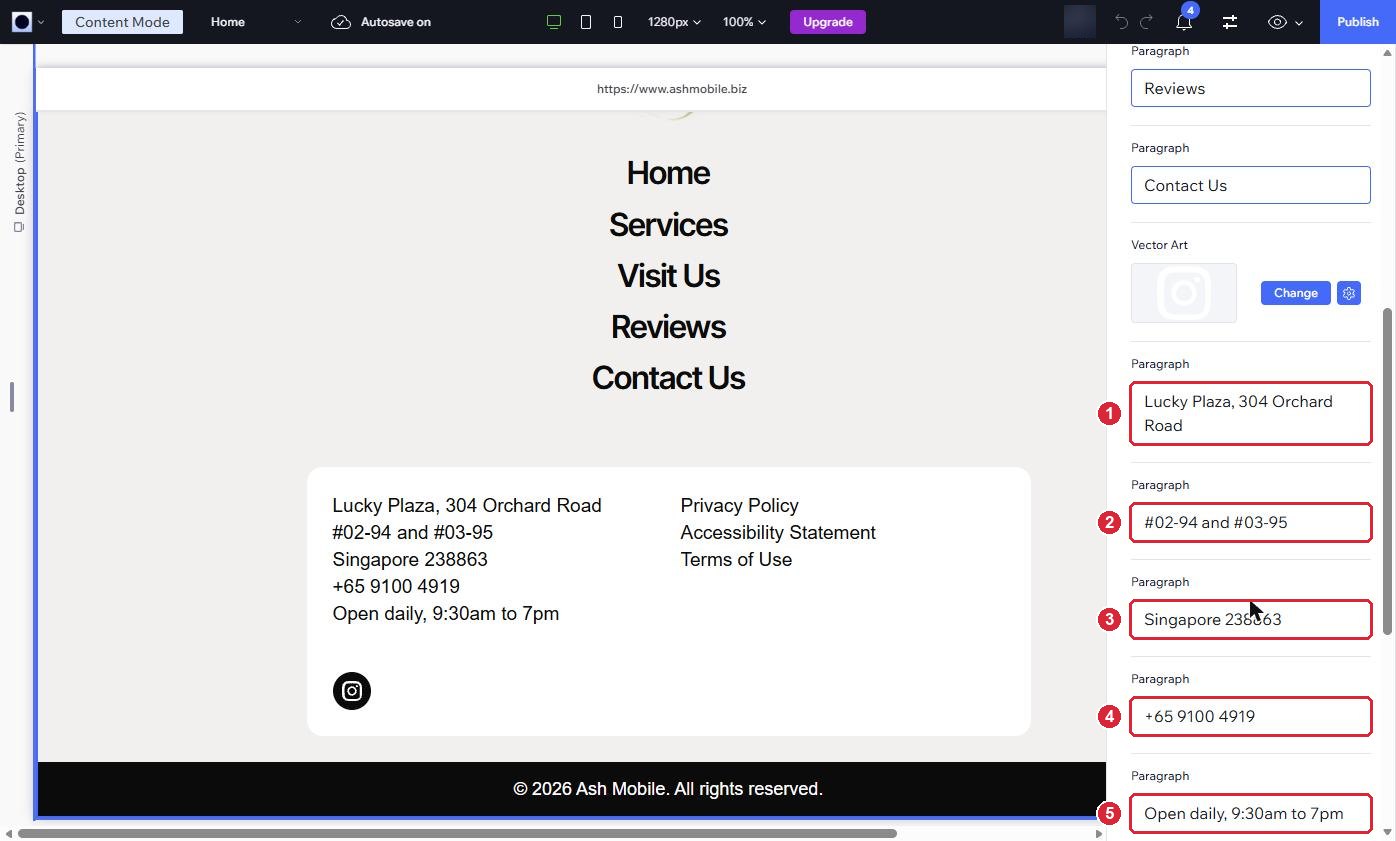
- 1Address.
- 2Unit numbers.
- 3Postcode.
- 4Phone number shown to customers.
- 5Opening hours.
10What we look after for you
Send us a request for anything outside your enquiries, your page text and your photos, for example:
- Design, layout or how a page looks on phones
- New pages, menu items or buttons
- A change to a WhatsApp button or its number
- Google search settings
- Your domain, or giving a colleague access to the dashboard
Tell us the page and what you want changed. A screenshot helps.
Send a website support request11Good habits
- After a change, click View Live Site and check it looks right, on your phone too.
- Check the shop's Gmail every day for new website enquiries.
- Use photos with the same shape as the ones you replace.
- Keep your Wix and Google logins to yourself. Ask us to give a colleague their own access.